
How to activate your device?
Have you just bought a brand-new device and are excited to use it? Well, before you can start sharing information and enjoying its features, first you need to activate it and add your contact information. Don’t worry; it’s a simple process and we’re here to guide you through it, explaining each step along the way. Once you have completed these steps, you will be ready to make the most of your new device and enjoy all the benefits it has to offer. Let’s get started!
Guide to activate new device
The first thing you need to do after purchasing your new device is to activate it. To ensure a smooth activation process, make sure your smartphone is connected to a stable internet connection. Once you have confirmed your internet connectivity, take your Virtifi device and tap it on your smartphone. If your phone doesn’t have NFC, you can scan the QR code on your new device. This action will initiate the activation process.
After tapping the card or scanning the QR code, a login screen will appear on your smartphone. If you have previously set up a profile for your card, you need to enter your credentials to log in and link your device to the profile. However, if you are a first-time user, you won’t have a profile yet, so you will need to create one to begin. You will find the “Signup” option at the bottom of the screen right after the login section. Tap on it to proceed further.
.
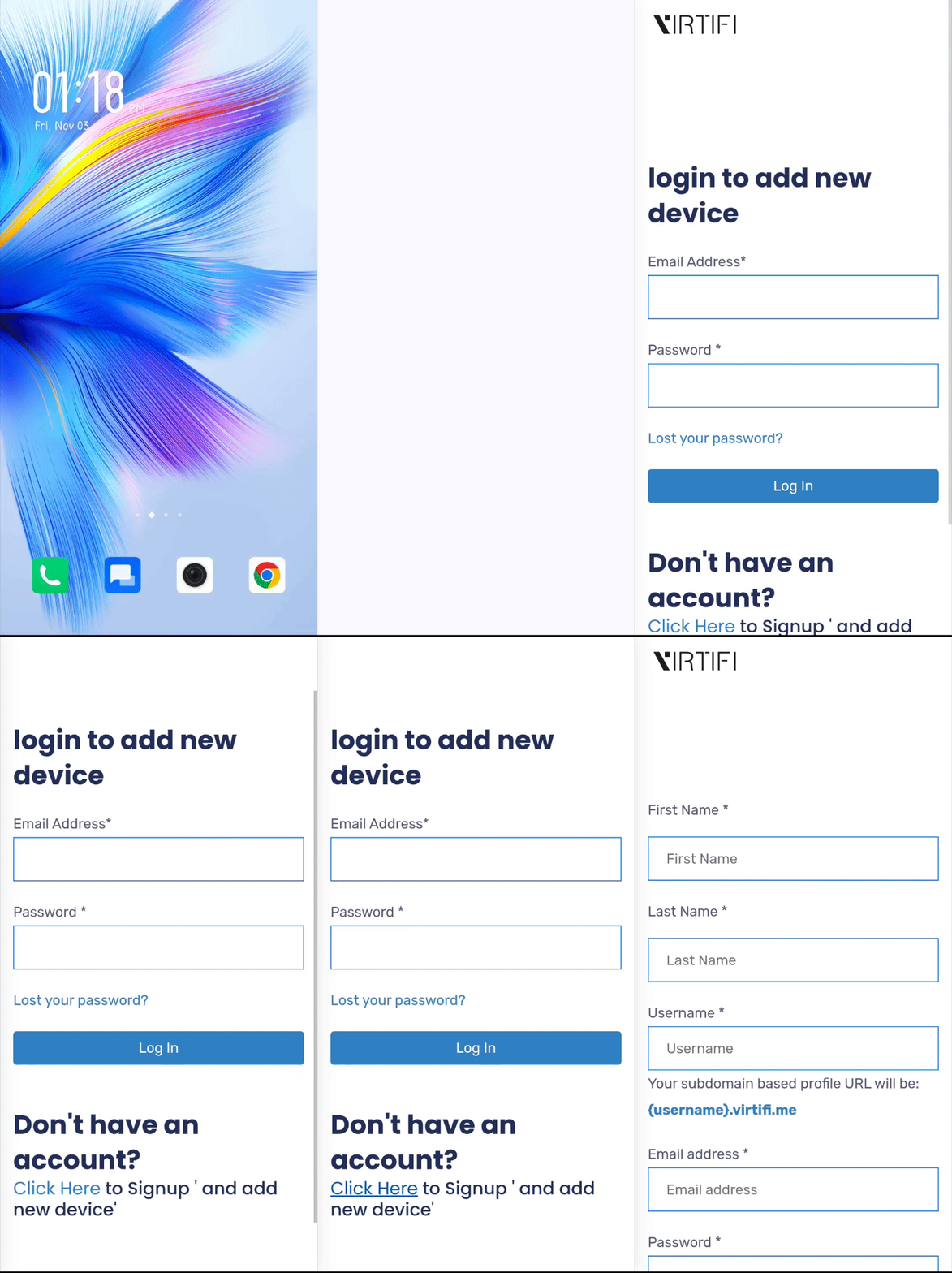
Figure: Click on “Click Here” for signup
Once you click on “Signup,” a new window will open, prompting you to fill in some essential information. You will need to provide your name, a unique username, your email address and create a secure password.
After filling in this information, you need to tap the “Submit” button at the bottom of the page.
Following this, another window will open, asking for your contact details. This includes your contact number, company name, and address. After adding this information, once again, you need to tap the “Submit” button.

Figure: Add your details and click “Continue”
With this step, your device will be successfully activated. To make sure your card is activated, tap it on your smartphone. This time instead of opening the login page, your profile will appear on the screen. The screen will display the information you added to your profile.
To add more information proceed with the activation process or login to virtifi.me and add more information or edit the previous one.

Figure: Add more account details and click on “Confirm”
In the next step, you can make your device truly yours by adding more details to it. You can personalise your device to reflect yourself or your company. This involves writing a brief description of who you are or what your company does. You can also upload a picture of yourself, so others can easily identify you, and add a cover image to make your profile look nice. You can also add as many actions as you want to your profile. Once you’ve done these steps, your device will be ready for you to use. You can share information, connect with people, and enjoy all the cool features it has.

Figure: After activation, personalise your profile