
How to add a new action in Virtifi?
In Virtifi, actions are the links and contact information you add to your profile. These include your social media links (WhatsApp, Instagram, Facebook, etc.), address, bank account, website, and many more. We call them ‘actions’ because they make things happen with just a click, like a secret shortcut to your destination, all without needing to know what’s going on behind the scenes.
To add a new action in Virtifi, you will need to follow a simple process. We will guide you throughout the process in this guide.
Video Guideline
Guide to Add a New Action in Virtifi
To add a new action in Virtifi, you must first login to virtifi.me. Once you are logged in, you will see your profiles on your screen. You may have more than one Virtifi profile. Click the “Edit” button on the profile to which you want to add an action. The profile information window will open.
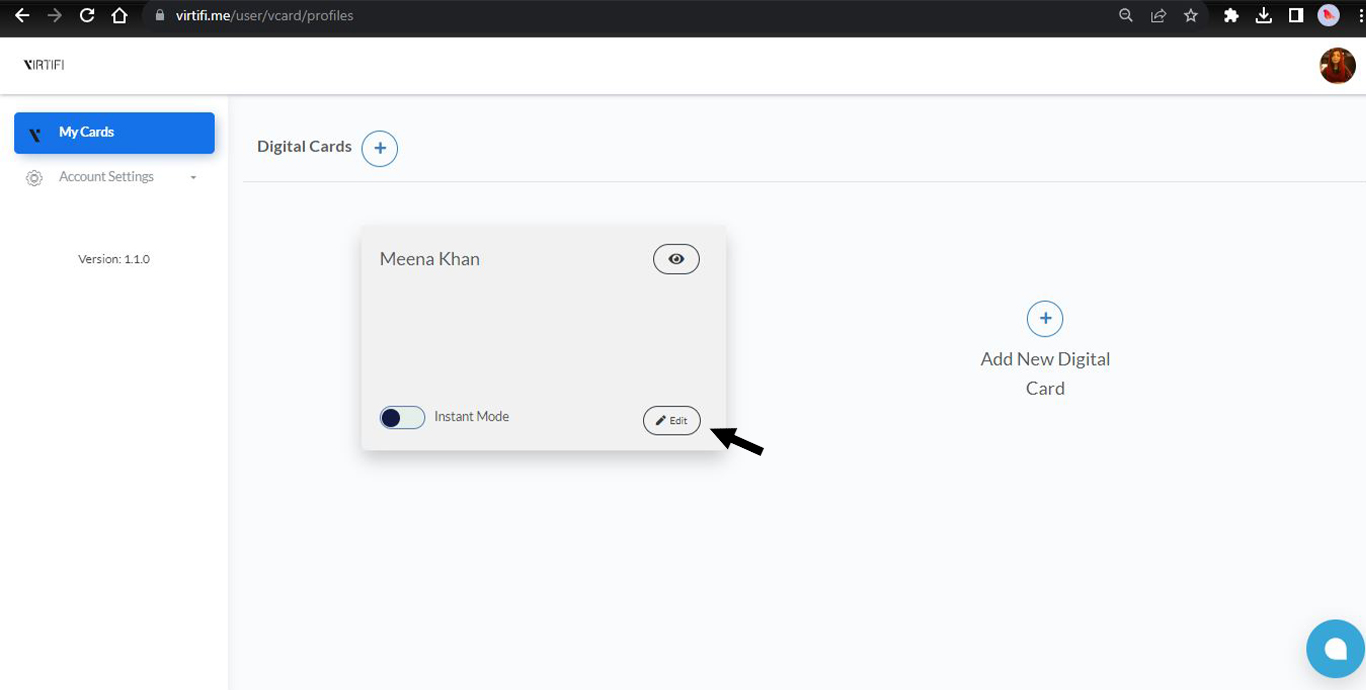
Figure: Edit button on Virtifi profile
On the window, you will see various customization options. In most cases, you will also see some pre-existing actions on this window because these actions are added to your profile by default. However, in some cases, the window may appear without any action.
Although the process for adding new actions is similar in both cases, there is a slight difference in the location of the “Add action” button.
When actions pre-exist
In most cases where pre-existing actions appear on the window, you will find the “Add Action” button on the right side of your screen. To proceed further you need to click on the button. You will then be able to move on to the next step.
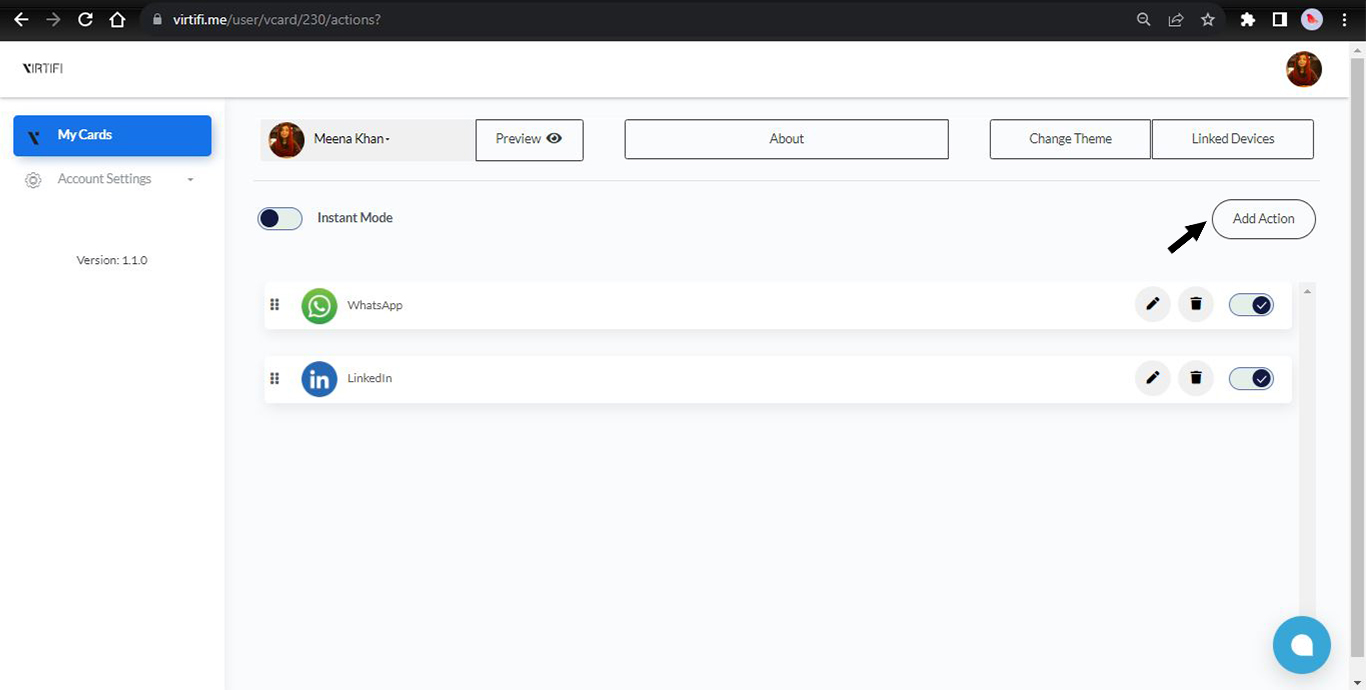
Figure: Click“add action” button on the right side of the screen if there are pre-existing actions
When actions do not pre-exist
In cases, where no default actions are present, you will find the “Add Action and Contact Details” button at the centre of the screen. Tap on the button to add a new action. The rest of the steps are the same for both cases.
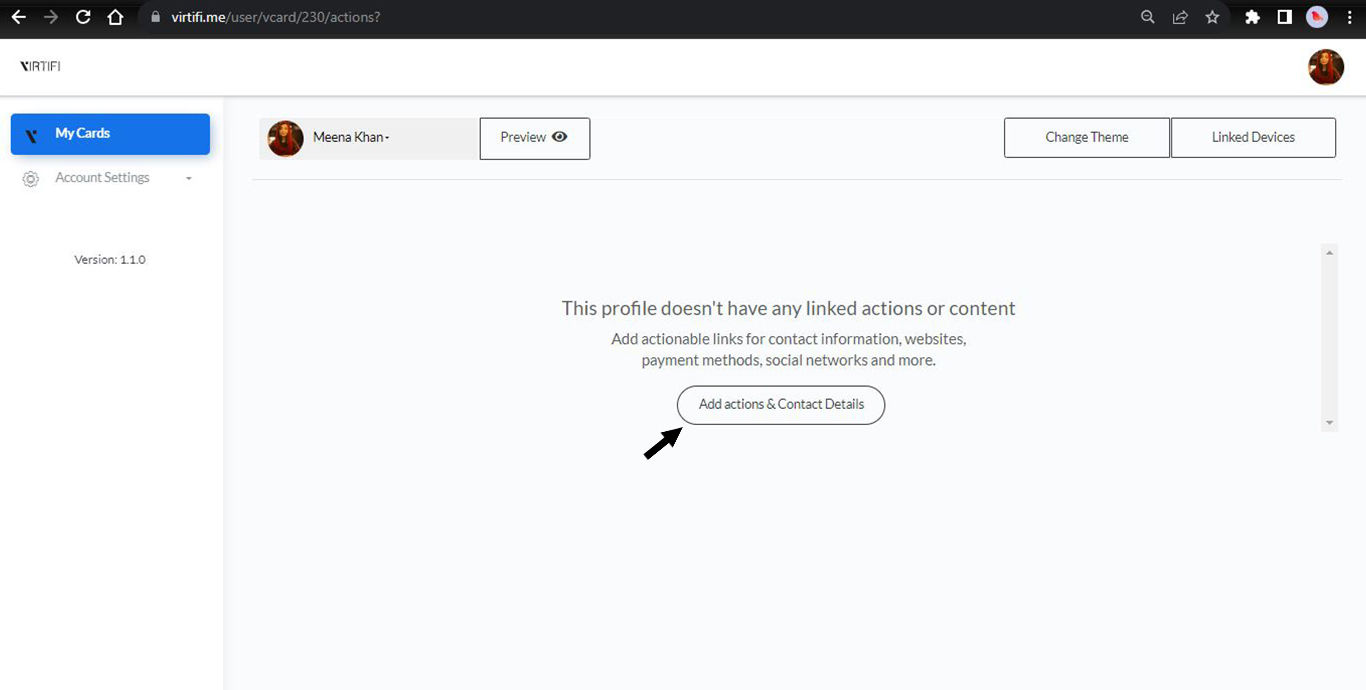
Figure: Click“add actions & contact details” button on the centre of the screen if there are no pre existing actions
Clicking the “Add Action” button will open a popup on your screen. Within this popup, you’ll find a list of available actions, including WhatsApp, LinkedIn, Instagram, YouTube, etc. You can tap on any action you want to add to your profile.
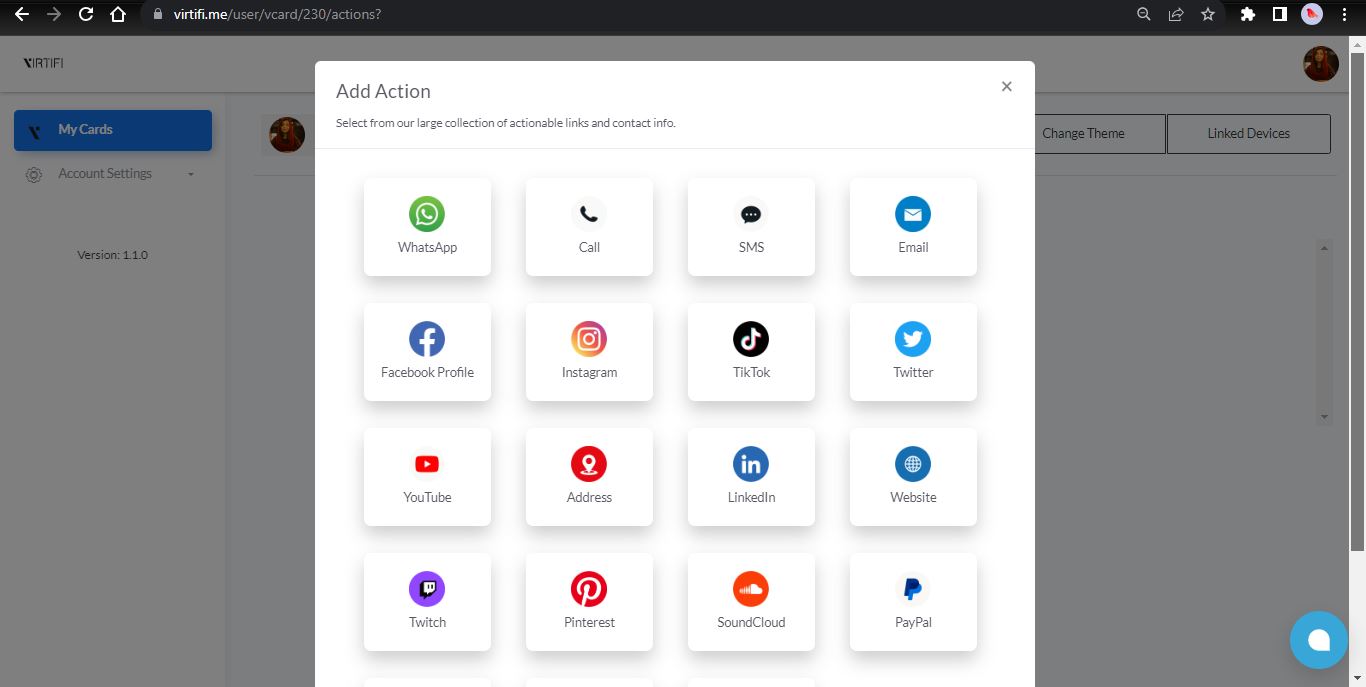
Figure: A popup including all the available actions
Depending on the selected action type, you will need to configure the action parameters. For example, if you select “WhatsApp,” you need to provide a phone number and if you select “Instagram” you need to add your user name.
You will also find an option to change the title of your action. Changing the title will not affect the action settings. It will only change the title of the particular action. Let’s say you have two WhatsApp accounts, one is your personal and the other is for business. You can change the titles of your WhatsApp actions to personal and work. This will help others to access the required information easily.
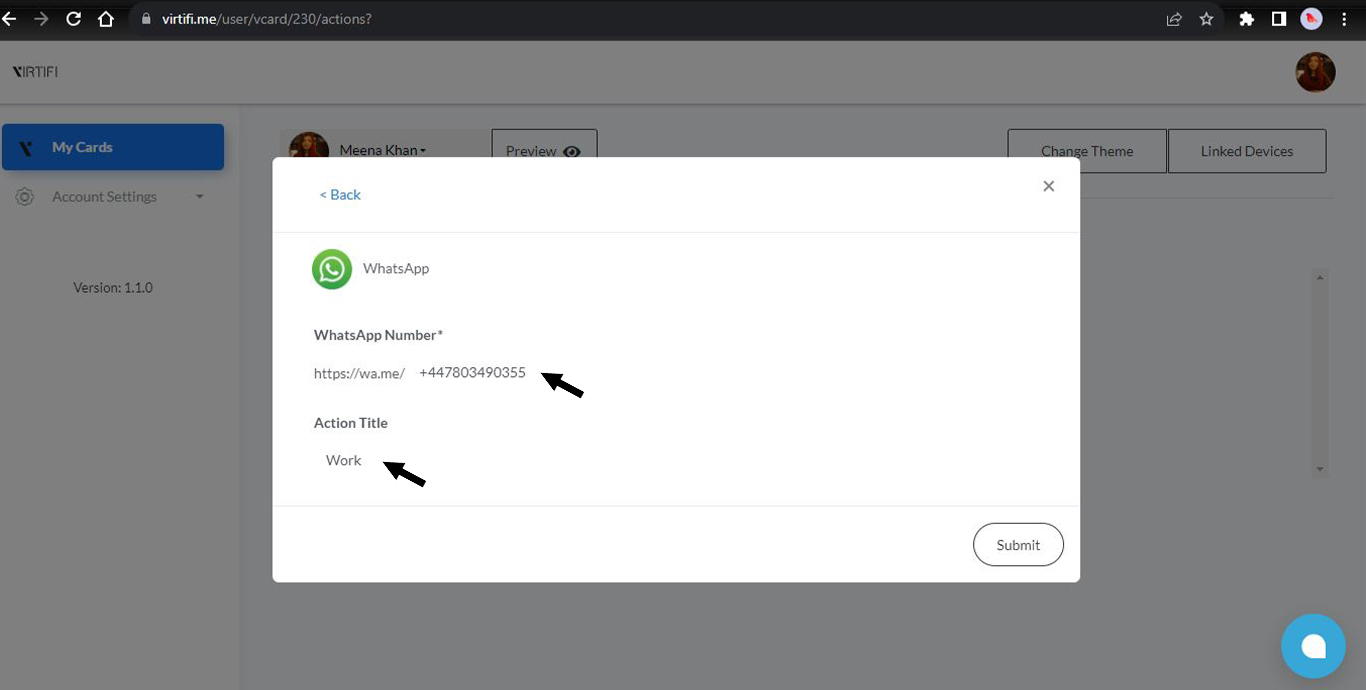
Figure: Add contact and Action title
To proceed you need to fill the required information and click the “submit” button. This will add action to your profile.

Figure: Click on the submit button to add action in Virtifi
Congratulations! You have added an Action. It was super easy to add a new action to Virtifi. Wasn’t it?
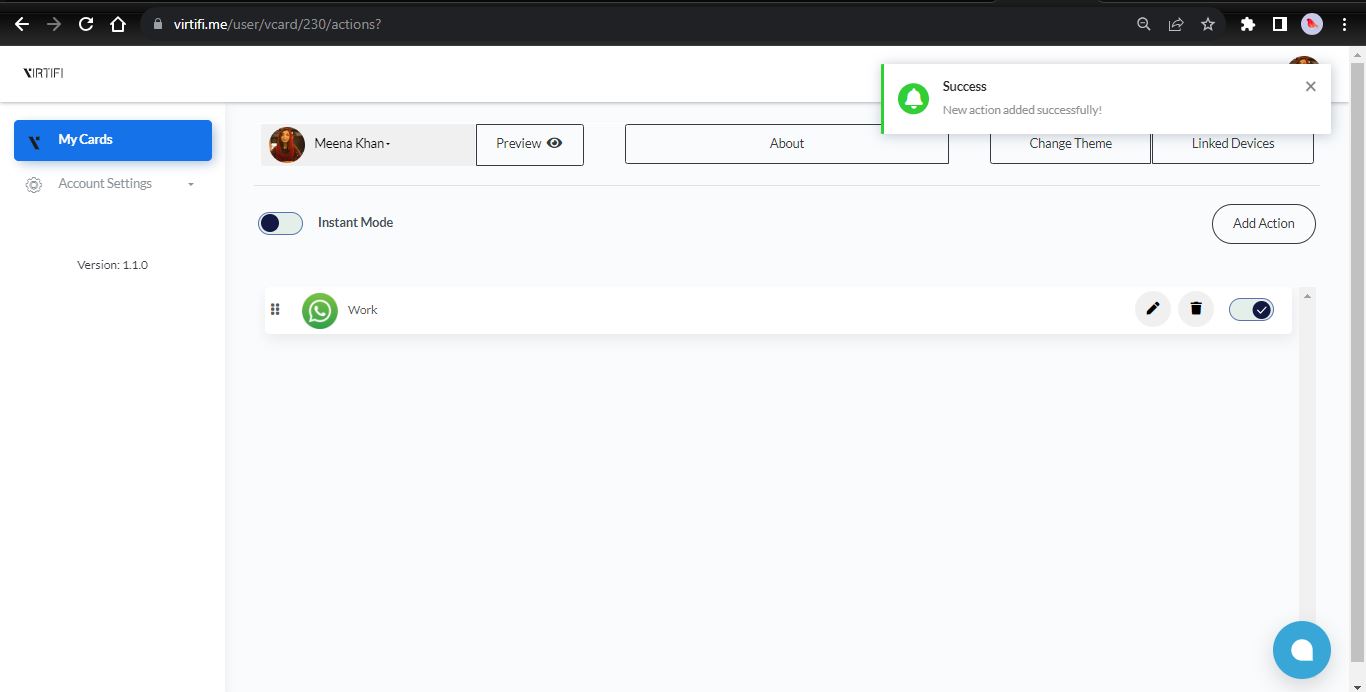
Figure: Action added successfully to Virtifi
You can add multiple actions according to your needs. To do this, click on “Add Action” and follow the same guided process again. You have also the flexibility to add the same action multiple times with different contact information. For instance, if you have more than one WhatsApp number and wish to include all of them, you can do so.
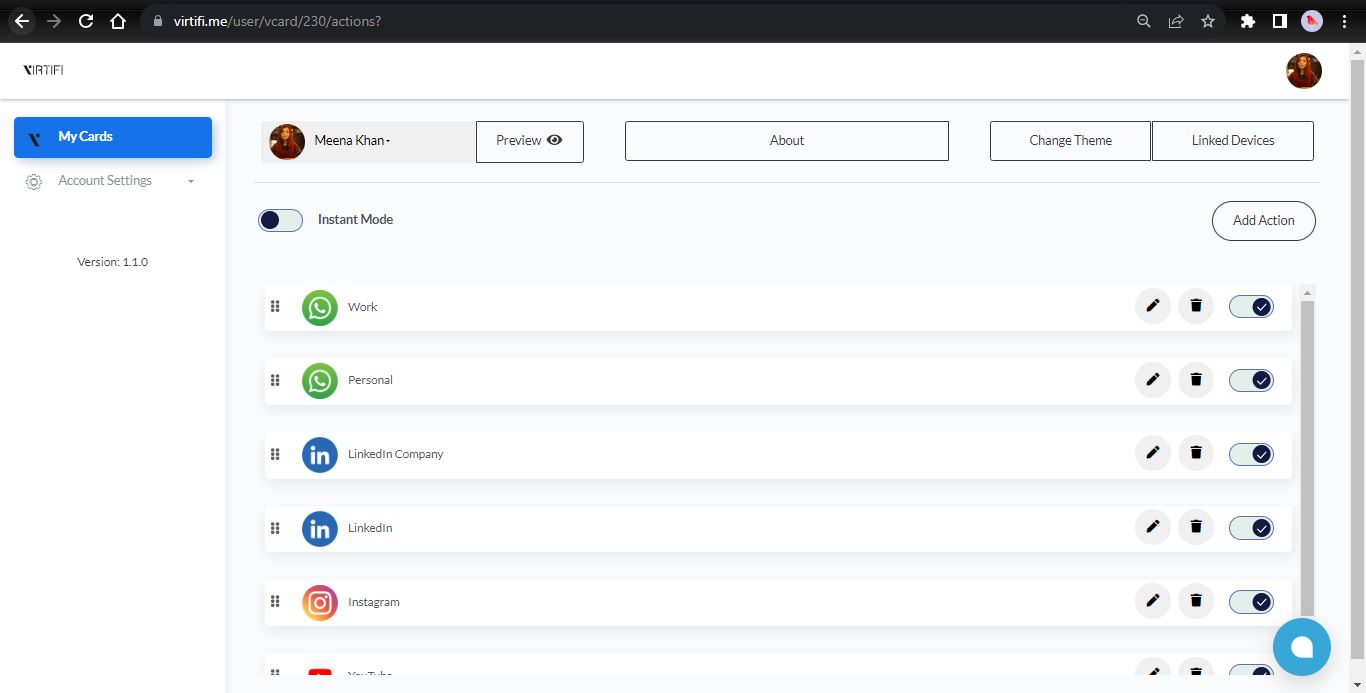
Figure: Add as many actions as you want